
Can a Travel eSIM Hotspot Connect Your Laptop Abroad?
A phone can share travel eSIM data with a laptop only when the device setup and the plan permit it. Check the data line, tethering terms and test steps.
How-to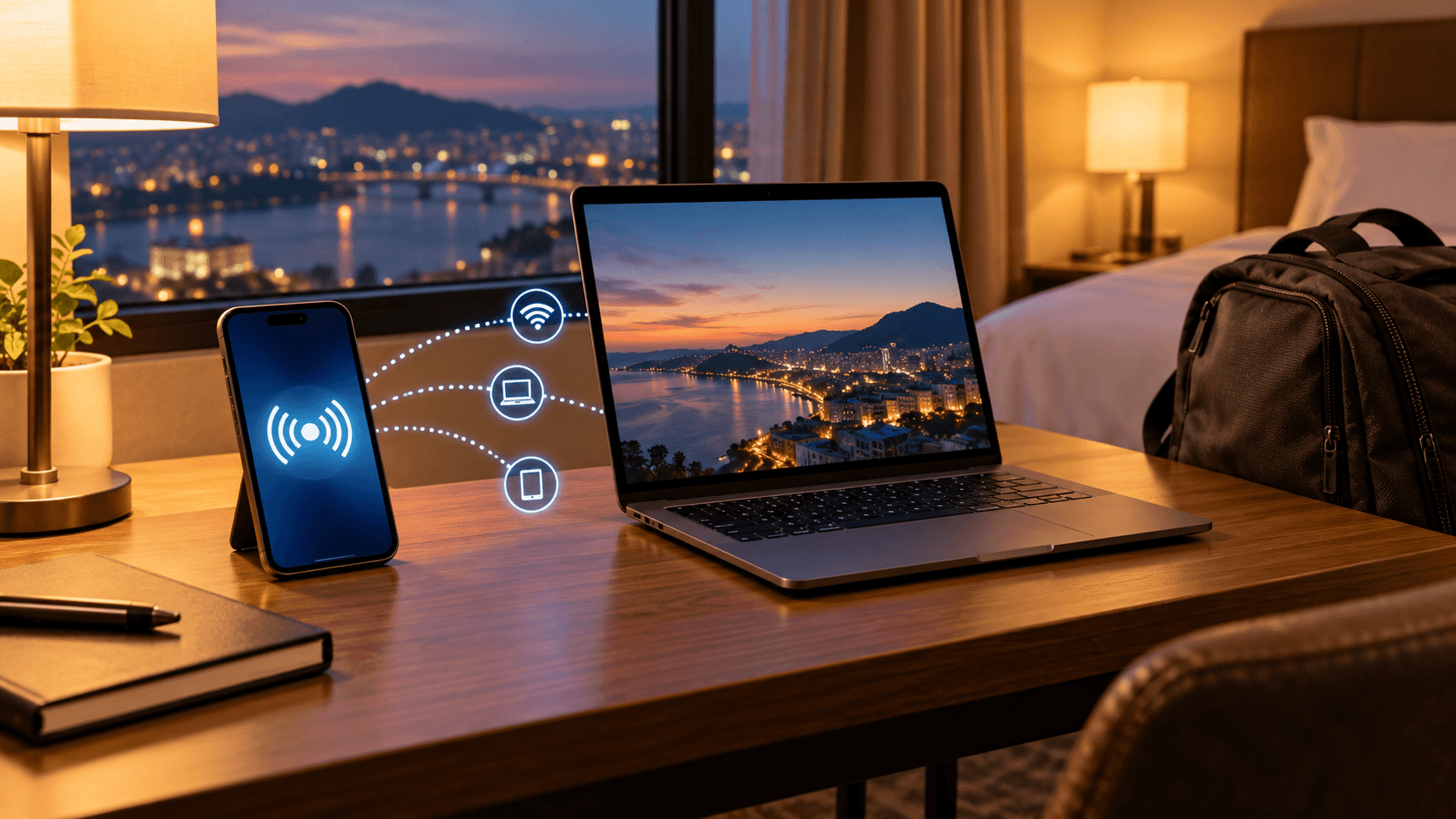
At a glance
- Hotspot source
- cellular data
- Pixel setting
- Wi-Fi hotspot
- Seller condition
- plan
Booking a year-end trip with a laptop changes the eSIM question. Having mobile data on a phone does not by itself promise that the phone can share that data with another device under your particular plan. The useful decision is whether the handset supports hotspot sharing, which SIM line supplies the data, and whether the purchased plan permits tethering. Apple and Google explain the device behavior; your plan's current terms must answer the commercial part. Test the whole chain before you need to join a work call from a hotel lobby.
What a travel eSIM can and cannot do for a laptop
A travel eSIM is a mobile plan installed on a compatible phone. When that phone has a working cellular data connection, its hotspot feature may share that connection over Wi-Fi with a laptop, tablet or another phone. Apple's iPhone guide says Personal Hotspot uses cellular data and, on a Dual SIM iPhone, uses whichever line is selected for cellular data. Google's Pixel guide likewise describes Wi-Fi hotspot as sharing the phone's mobile data with another device. Neither device guide promises that every travel eSIM permits that use.
This is why a plan labeled “data” is not enough evidence on its own. Before buying, check the exact destination plan's terms for hotspot or tethering restrictions, data allowance, expiry and any fair-use limits. Some mobile operators limit or charge extra for tethering, as Google warns. Do not infer unrestricted sharing from a working eSIM or from a general statement that your phone has a hotspot menu. If the plan page is unclear, ask the seller through its support channel before relying on it for paid work or a multi-device trip.
The laptop does not need its own eSIM if it joins the phone's hotspot by ordinary Wi-Fi. That can be useful for a laptop without cellular hardware. It also means both devices consume the same mobile data allowance, and a laptop may transfer far more data than a navigation app on a phone. The amount depends on your actual activity, software updates, cloud sync and video settings; a universal “hours per gigabyte” estimate would be misleading. Check the plan's data balance during the trip and pause nonessential background transfers when needed.
On iPhone, identify the data line before turning on hotspot
Apple says a Dual SIM iPhone can use one cellular data network at a time. In Settings, open Cellular and inspect the selected Cellular Data line. If your intention is to spend travel eSIM data, select the travel line and verify that it actually loads a webpage before you connect the laptop. Personal Hotspot uses that selected line. A hotspot can appear to work while using the home line if you have left your ordinary SIM as the data source; that is exactly the kind of roaming surprise a preflight check should prevent. Apple's internet connection guide explicitly says to verify the selected line on Dual SIM.
Next, follow Apple's Personal Hotspot path in Settings. The current guide says to tap Cellular, then Set Up Personal Hotspot; once configured, the feature is available from Personal Hotspot settings. Set a password and select the iPhone's network name on the laptop's Wi-Fi list. Apple says Windows devices and other Wi-Fi-capable devices can connect, not just Macs. If the setting is missing while Cellular Data is enabled, Apple says to contact the carrier about adding Personal Hotspot to the plan. For a reseller plan, contact the seller of that eSIM as well, giving the exact plan and phone model rather than assuming a handset fault.
Apple also says an iPhone Personal Hotspot shares the cellular internet connection, not a hotel Wi-Fi network the phone has joined. That distinction matters if you expected the phone to repeat a weak room Wi-Fi signal. On the iPhone described by Apple's guide, switch to cellular data and verify the active line if your purpose is travel eSIM sharing. If you need to extend hotel Wi-Fi to several devices, ask the hotel about its device policy or use a purpose-built solution instead of counting on iPhone Personal Hotspot to relay Wi-Fi.
On Pixel, use the documented hotspot path
Google's Pixel steps are Settings, Network and Internet, Hotspot and tethering, then Wi-Fi hotspot. Turn the hotspot on, choose its name and password, then join from the laptop's Wi-Fi menu. Google's guide notes that Data Saver must be off to tether by Wi-Fi. It also cautions that some instructions depend on Android version and that operator terms can limit or charge for tethering. A Galaxy phone or another Android model may put the controls elsewhere, so use that manufacturer's current device guidance instead of forcing Pixel menu names onto a different phone.
Google documents other tethering methods, including Bluetooth and USB, but those are not interchangeable across every computer. Its Pixel guide says Macs on macOS Monterey and later cannot tether to Android through Bluetooth, and that Macs cannot tether to Android through USB. For a mixed-device travel kit, Wi-Fi hotspot is usually the simplest documented common path to try first. If you have a specific work-security policy, test the allowed method and your VPN before departure, because “the laptop sees the hotspot” is only the first half of a usable connection.
Pixel's guide says a Wi-Fi hotspot can serve up to ten other devices, but that is a device capability, not a recommendation to place ten travelers on a small data plan. Every connected device can make background requests. A shared hotspot also draws on the phone battery; Google recommends plugging in devices while tethering and turning the connection off afterward. Keep a charging cable and power source available when a laptop session matters. Turn off the hotspot when finished so other saved devices do not quietly reconnect.
Make a five-minute test before you rely on it
Test after the travel eSIM is installed and activated according to its own instructions. Disconnect the phone from Wi-Fi so the test genuinely uses cellular data. Confirm that the travel line, rather than your home line, is selected for mobile data. Open a simple webpage on the phone. Then enable hotspot, join from the laptop using the displayed name and password, and open a different webpage on the laptop. Finally, inspect the phone's data-use or plan-balance screen and turn the hotspot off. This sequence checks the handset, data line, Wi-Fi sharing and plan permission without assuming any one of them from an icon.
Do the test in a place where you have a fallback connection, not immediately before a boarding pass, interview or remote meeting. A successful test at home confirms settings and plan behavior there; it cannot guarantee the same radio coverage at a destination. A successful connection in one city cannot guarantee speed in another. Local network conditions, the destination plan's partner network and your device all matter. If the laptop joins the phone but pages do not load, isolate the problem: can the phone itself load a page on cellular data, is the correct SIM line selected, and does the plan allow tethering? That order avoids changing unrelated laptop settings when the phone has no data connection.
Plan for the ways a laptop changes data use
For occasional messages, documents and map planning, a phone hotspot may be a practical substitute for hotel Wi-Fi. For long video calls, cloud backup, operating-system downloads or several travelers sharing one plan, check the plan's allowance and renewal or top-up options before you buy. The source of the risk is simple: the laptop's ordinary behavior does not know it is using a finite mobile bundle unless you configure it accordingly. Mark the hotspot connection as metered where your computer supports that setting, pause large synchronization jobs and use video settings appropriate to the available data and connection. These are user controls, not a promise of a particular data rate.
If hotspot use is central to the trip, compare the actual destination plans, terms and device compatibility through Roameo's plan comparison and compatibility check. Treat a plan card as the start of a verification, not as proof of universal tethering. A plan may be attractive for phone use yet unsuitable if its tethering terms, allowance or duration do not fit your laptop workload. Keep the booking confirmation and installation details accessible offline so support can identify the specific product if sharing fails.
A worked travel decision
Consider a traveler who needs to send documents from a laptop after landing and keep their home number reachable. They select a travel eSIM for data, leave the home line available according to their carrier's settings, and check that the travel line is the cellular-data line. They confirm in the purchased plan's terms that tethering is allowed. At the destination, the phone loads a webpage on mobile data; the laptop then joins the password-protected hotspot and loads the document service. The traveler closes cloud backup and turns sharing off after the upload. If the plan terms do not permit hotspot, the correct decision is to arrange another connection before departure, not to discover that limitation when the document is due.
That example deliberately avoids a made-up speed or data-use figure. What matters is the sequence of checks and the alternatives available when one step fails. If the phone cannot load a page, inspect activation and coverage before troubleshooting the laptop. If the phone works but the laptop cannot join, inspect the hotspot name, password and device settings. If the laptop joins but has no internet, verify the selected data line and ask the eSIM seller whether the specific plan allows tethering. These steps distinguish a device setting from a plan restriction without promising an outcome the seller or local network has not confirmed.
Frequently Asked Questions
Will my iPhone hotspot use my travel eSIM or home SIM?
Apple says it uses the line selected for Cellular Data. Check that setting and test with Wi-Fi off before relying on the hotspot abroad.
Does an eSIM automatically permit laptop tethering?
No general device rule guarantees it. Google warns that operators can limit or charge for tethering. Verify the exact travel plan's terms.
Can an iPhone hotspot repeat hotel Wi-Fi?
Apple says Personal Hotspot shares the iPhone's cellular internet connection; it does not take a joined Wi-Fi network and rebroadcast it through that feature.
Keep reading

Venice Airport Bus or Alilaguna: Which Fits Your Hotel?
From Marco Polo Airport, compare ACTV route 5 with Alilaguna by your hotel stop, ticket coverage and final walk before buying your Venice arrival ticket.
Read more
Madrid Airport Metro or Cercanías: Which Rail Fits?
Choose Madrid-Barajas Metro line 8 or the T4 Cercanías train by arrival terminal, hotel stop, airport supplement, ticket rules and any transfer you need.
Read more
Zurich Airport Train or Tram 10: Which Stop Fits?
The train reaches Zürich HB quickly, while tram 10 serves Oerlikon and intermediate stops. Choose from your exact hotel address, transfer needs and ZVV ticket zones.
Read more