
How to prepare your phone for international travel
Check your phone and data plan before the airport. Then save the information you need even if mobile service is delayed on arrival.
Roameo Editorial Team · 26 September 2026
What should you do to your phone before travelling abroad?
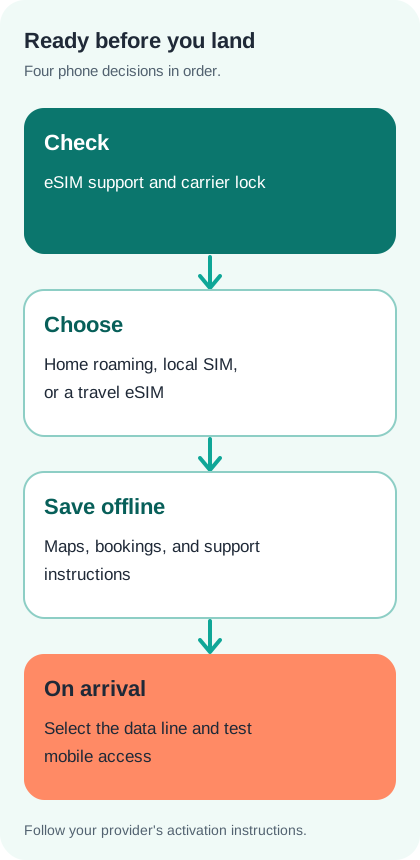
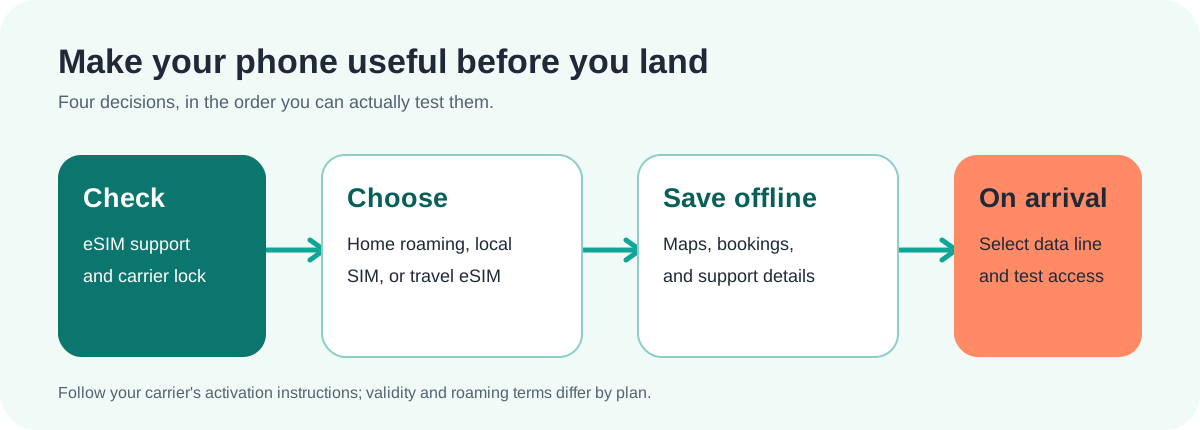
First, check whether your phone is unlocked and supports the connection method you plan to use. Then compare your home carrier's roaming terms with a local SIM or travel eSIM, install or arrange the chosen plan, and save essential trip details offline. On arrival, select the intended mobile-data line and test maps and messages before leaving the airport. These steps prevent a common problem: having a working plan on paper but no usable data when you need directions.
Do not buy a travel eSIM solely because a phone model name appears on a compatibility list. Country variants and carrier locks can differ. Our device compatibility page helps you narrow the model; your phone's settings and your carrier can confirm whether it is unlocked. Apple says an iPhone using another provider's travel eSIM must be unlocked, and its international eSIM guide shows where to check the lock status.
Choose the connection that suits your trip
| Option | Useful when | Check before buying |
|---|---|---|
| Home-carrier roaming | Your plan already covers the destination or offers a suitable pass. | Daily limits, data allowance, countries covered, and charges after the allowance. |
| Local physical SIM | You want a local number or your unlocked phone has no eSIM support. | SIM slot, local registration rules, where to buy it, and whether you can keep your home number active. |
| Travel eSIM | Your phone supports eSIM and you want to arrange data before arrival. | Carrier lock, destination coverage, activation trigger, validity, data allowance, and calling/SMS support. |
Apple advises checking whether your home plan already includes international roaming. Google notes that a prepaid international eSIM is another option for Pixel owners. Neither option is automatically cheapest for every traveller: prices and inclusions depend on your home carrier, route, and usage. Compare the actual plan terms before paying. If you need a local phone number, check explicitly; many travel eSIMs provide data only.
Check eSIM support and carrier lock
On an iPhone, Apple's travel guide says to open Settings, then General, then About; No SIM Restrictions beside Network Provider Lock means the device is unlocked. Supported iPhone models can use a home line and a travel eSIM together, but the exact combination varies by model and region. An eSIM-only iPhone has no physical SIM slot, so buying a local plastic SIM at the airport will not solve a connection problem.
On a Pixel, open Settings, then Network & internet, then SIMs to inspect mobile-network settings. Google's Pixel eSIM guidance explains that multiple eSIM profiles can be stored and that some newer models can use two simultaneously. A phone can still be locked to a carrier, so confirm that separately. Other Android brands use different menus and support combinations; rely on the manufacturer and carrier for your exact device.
If the phone is locked, ask your home carrier about unlocking eligibility before buying a competing provider's plan. If it cannot be unlocked in time, compare the carrier's own travel pass or take a separate unlocked device. Do not delete your working home SIM profile while experimenting with travel settings.
Install and record the plan before departure
Where the provider allows early installation, set up the travel eSIM over reliable Wi-Fi and label the lines clearly, such as Home and Travel. Save the QR code, manual activation details, and support link somewhere you can access offline. Read when validity begins: some plans start on installation, while others begin at first connection to a supported network. Follow that plan's instructions rather than a generic rule.
Keep the home line if you need bank verification texts or calls, but check what your carrier charges for receiving or making them abroad. Select the intended line for mobile data, and inspect any automatic data-switching option that could move usage back to the home plan. Apple's data roaming instructions show that roaming can be changed per line on a dual-SIM iPhone. On Pixel, the roaming setting is under the chosen SIM in mobile-network settings; see Google's mobile-network guide.
For a travel eSIM, the provider may require roaming to be enabled on that travel line so it can connect to a partner network. That does not mean enabling roaming on your home line. Check the installation message for any APN or network-selection steps; many plans do not need them, but the provider's instructions take priority.
Download what you will need without service
Save an offline map covering the airport, first accommodation, and a route between them. Download your boarding passes, rail tickets, hotel confirmation, and insurance contact details. Save the address in the local language if available. A screenshot can be useful, but keep the original file or app booking too because a barcode or reservation may update. If a transport app demands a one-time code sent by SMS, sign in before departure while your home line is working.
Charge the phone and power bank fully, and keep both in the cabin. The FAA requires spare lithium batteries and power banks in carry-on baggage; check your airline's battery limits for your route. Pack the cable and the right plug adapter where you can reach them. A data plan will not help if the device is flat before you find the hotel.
What should you test after landing?
- Turn off airplane mode and wait for the travel line to register. If the provider specifies a particular activation sequence, follow it.
- Confirm that mobile data is assigned to the intended line and that the travel line's roaming setting matches the provider's instructions.
- Open a web page and your map using mobile data, with airport Wi-Fi disconnected. A signal icon alone does not prove data is working.
- Check the home line's roaming and automatic-switching settings before leaving the airport. Use the provider's support instructions if registration fails.
If service fails, keep your offline address and map available while troubleshooting. Try the provider's documented steps first, including the correct network and APN if supplied. Do not repeatedly delete and re-add an eSIM unless support tells you it can be reinstalled: some activation codes work only once.
If the phone still has no data
| What you see | What to check |
|---|---|
| No network on the travel line | Confirm the plan covers your country, the line is enabled, and the provider's activation time has begun. Check its preferred-network instructions. |
| Signal bars, but web pages will not load | Confirm that mobile data points to the travel line. Check the line's roaming and APN settings against the provider's instructions. |
| Bank or booking code does not arrive | Check whether the home line is still active for SMS and what receiving messages abroad costs. A data-only eSIM does not create a new SMS number. |
Use airport Wi-Fi or your offline support details to contact the plan provider if these checks do not restore access. Avoid changing several settings at once; a single change followed by a connection test makes the problem easier to identify.
Why prepare the phone as part of packing?
The phone is both a travel document holder and a route-finding tool. Packing a charger without checking the data line leaves a gap; buying data without saving offline directions leaves another. Put the device checks alongside passport and medicine checks in your international travel packing checklist. If you are ready to compare destination coverage, start with Roameo's destination plans and confirm the plan's exact activation conditions before checkout.